
- Converters
- ▸ SVG TO DXF
- ▸ SVG TO JPG
- ▸ SVG TO PNG
- ▸ SVG TO EPS
- ▸ SVG TO PDF
- ▸ SVG TO WEBP
- ▸ SVG TO TTF
- ▸ EPS TO DXF
- ▸ EPS TO SVG
- ▸ PDF TO SVG
- ▸ PDF TO PNG
- ▸ PDF TO JPG
- ▸ EDIT PDF New
- ▸ JPG TO PDF
- ▸ MERGE PDF
- ▸ SPLIT PDF
- ▸ COMPRESS PDF
- ▸ PDF TO WORD
- ▸ PDF TO EXCEL
- ▸ WORD TO PDF
- ▸ EXCEL TO PDF
- ▸ AI TO SVG
- ▸ AI TO EPS
- ▸ AI TO DXF
- ▸ WEBP TO PNG
- ▸ WEBP TO JPG
- ▸ PNG TO WEBP
- ▸ JPG TO WEBP
- ▸ HEIC TO PNG
- ▸ HEIC TO JPG
Merge PDF Files Into One
Combine two or more PDFs into a single file, in exactly the order you want.
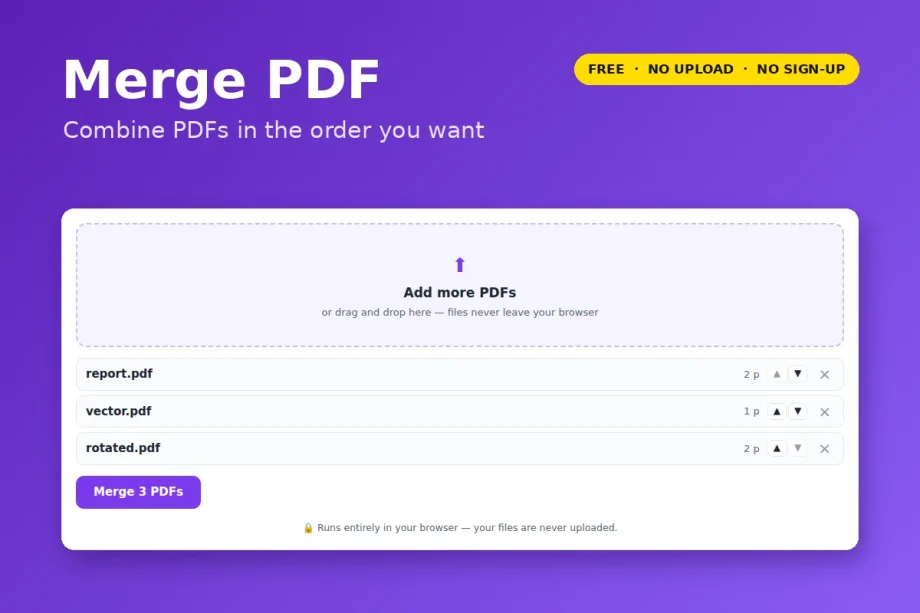
Free · no signup · any number of PDFs · your file never leaves your device

How to merge PDFs
- Click Open Merge PDF and choose your PDFs (hold Ctrl or ⌘ to pick several). Add more any time.
- Use the ▲▼ arrows to set the order.
- Click Merge PDFs.
Pages are copied across exactly as they are — text stays selectable, vectors stay vectors, nothing is re-rendered.
Need only some pages from a file? Take them out first with Split PDF, or merge everything and remove pages in the PDF editor.
- Password-protected PDFs need the password removed first.
- Bookmarks and fillable form fields are not carried into the merged file.
Your file is opened and processed by your own browser. Nothing is uploaded to VectorDad or anyone else, which also means there is no file-size queue, no watermark and no account.