- Converters
- ▸ SVG TO DXF
- ▸ SVG TO JPG
- ▸ SVG TO PNG
- ▸ SVG TO EPS
- ▸ SVG TO PDF
- ▸ SVG TO WEBP
- ▸ SVG TO TTF
- ▸ EPS TO DXF
- ▸ EPS TO SVG
- ▸ PDF TO SVG
- ▸ PDF TO PNG
- ▸ PDF TO JPG
- ▸ EDIT PDF New
- ▸ JPG TO PDF
- ▸ MERGE PDF
- ▸ SPLIT PDF
- ▸ COMPRESS PDF
- ▸ PDF TO WORD
- ▸ PDF TO EXCEL
- ▸ WORD TO PDF
- ▸ EXCEL TO PDF
- ▸ AI TO SVG
- ▸ AI TO EPS
- ▸ AI TO DXF
- ▸ WEBP TO PNG
- ▸ WEBP TO JPG
- ▸ PNG TO WEBP
- ▸ JPG TO WEBP
- ▸ HEIC TO PNG
- ▸ HEIC TO JPG
PDF to JPG Converter
Save every page of a PDF as a JPG image, at screen or print resolution, in one click.
Free · no signup · any PDF · your file never leaves your device
How to convert PDF to JPG
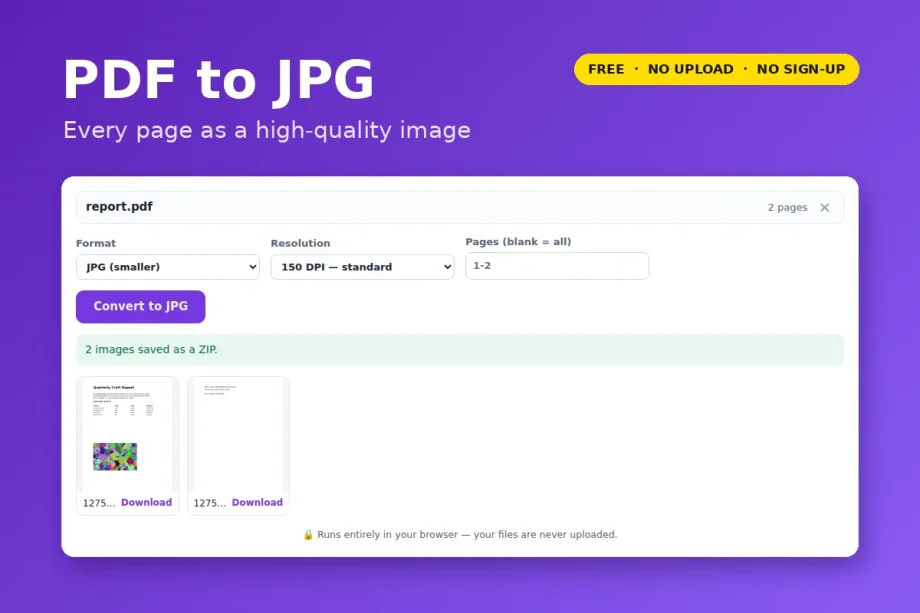
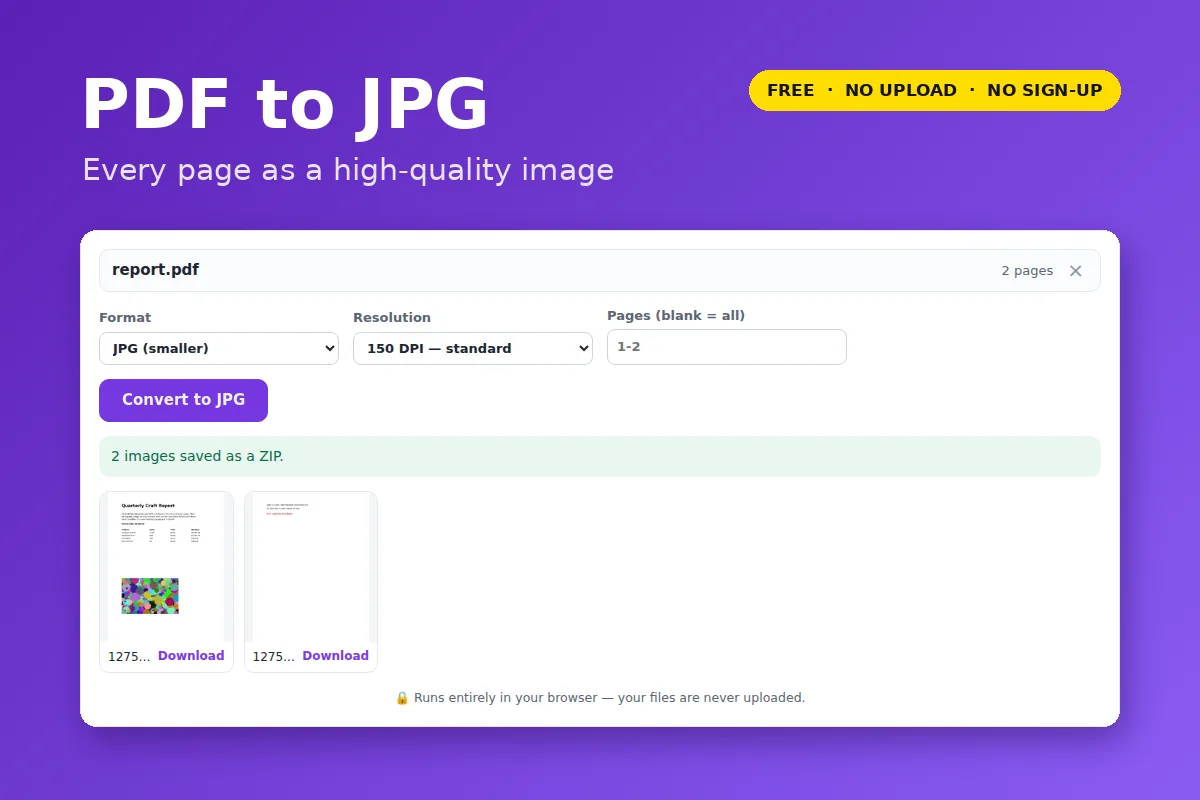
- Click Open PDF to JPG and choose your PDF.
- Pick a resolution: 150 DPI for screens, 300 DPI for printing and print-then-cut, 600 DPI for fine detail.
- Type page numbers if you only need some pages.
- Click Convert. One page downloads as an image; several download as a ZIP.
JPG or PNG?
PNG is lossless and supports transparency — best for line art, text, stickers and anything you will cut or trace. JPG files are smaller and fine for photos and sharing. Need the other one? Use PDF to PNG.
Which DPI?
- 72 DPI — thumbnails and quick previews.
- 150 DPI — on-screen use, email, slides.
- 300 DPI — printing, Cricut Print Then Cut, sublimation.
- 600 DPI — small text and fine detail you plan to trace or enlarge.
Your file is opened and processed by your own browser. Nothing is uploaded to VectorDad or anyone else, which also means there is no file-size queue, no watermark and no account.
Questions
Can I convert only one page?
Yes — type its number in the Pages box, e.g. 3, or a range like 2-5.
Why is the file so big at 600 DPI?
A letter-size page at 600 DPI is about 5100 × 6600 pixels. Use 300 DPI unless you need the extra detail.
Want a vector instead?
If the PDF has line art or lettering, PDF to SVG keeps it as scalable vectors.