
- Converters
- ▸ SVG TO DXF
- ▸ SVG TO JPG
- ▸ SVG TO PNG
- ▸ SVG TO EPS
- ▸ SVG TO PDF
- ▸ SVG TO WEBP
- ▸ SVG TO TTF
- ▸ EPS TO DXF
- ▸ EPS TO SVG
- ▸ PDF TO SVG
- ▸ PDF TO PNG
- ▸ PDF TO JPG
- ▸ EDIT PDF New
- ▸ JPG TO PDF
- ▸ MERGE PDF
- ▸ SPLIT PDF
- ▸ COMPRESS PDF
- ▸ PDF TO WORD
- ▸ PDF TO EXCEL
- ▸ WORD TO PDF
- ▸ EXCEL TO PDF
- ▸ AI TO SVG
- ▸ AI TO EPS
- ▸ AI TO DXF
- ▸ WEBP TO PNG
- ▸ WEBP TO JPG
- ▸ PNG TO WEBP
- ▸ JPG TO WEBP
- ▸ HEIC TO PNG
- ▸ HEIC TO JPG
Split PDF: Extract or Remove Pages
Pull out the pages you need, delete the ones you don’t, or cut a long PDF into equal parts.
Free · no signup · any PDF · your file never leaves your device
Three ways to split
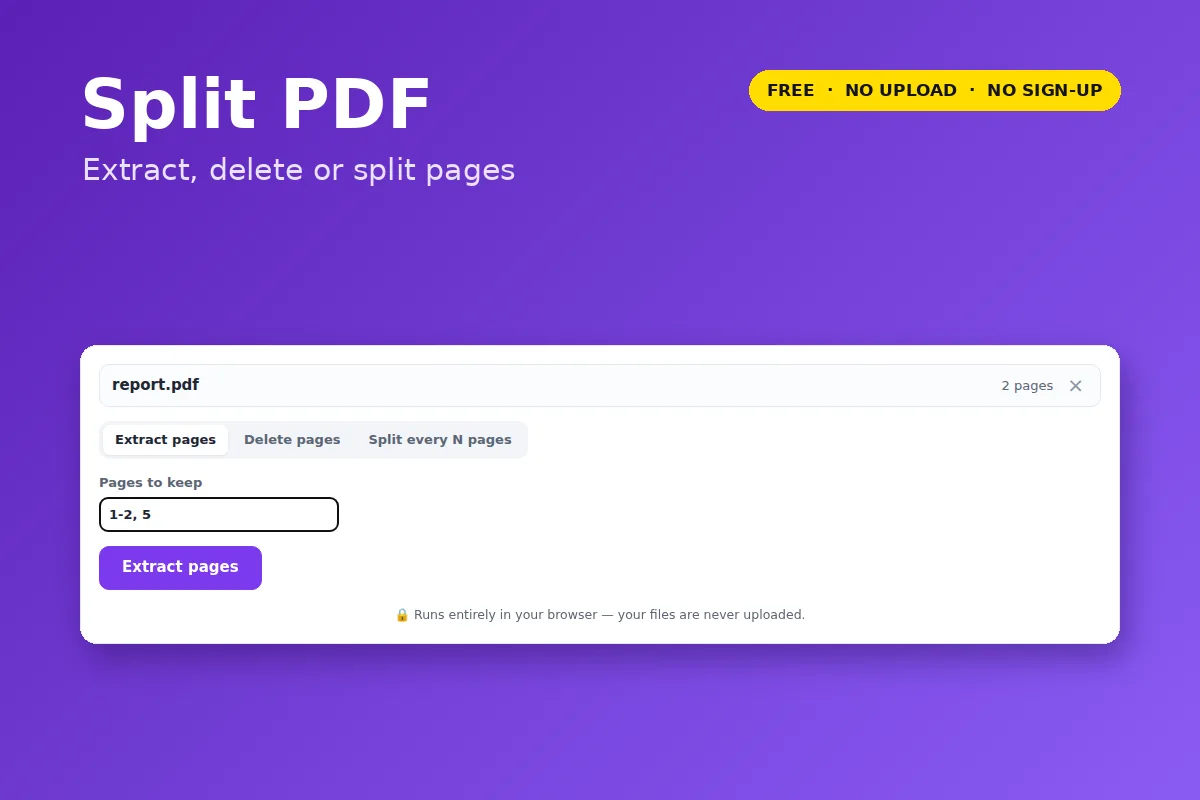
- Extract pages — type the pages to keep (for example
1-3, 7, 10-) and get one new PDF with just those. - Delete pages — type the pages to remove; everything else is kept in order.
- Split every N pages — cut the file into parts of N pages each, downloaded as a ZIP. Use 1 to get every page as its own PDF.
10- means “page 10 to the end”. Pages keep their text, images and quality — they are copied, not re-rendered.
Your file is opened and processed by your own browser. Nothing is uploaded to VectorDad or anyone else, which also means there is no file-size queue, no watermark and no account.
Questions
Can I split a PDF into single pages?
Yes — choose “Split every N pages” and leave N at 1.
Can I reorder pages too?
Use the PDF editor: each page has move-up/down, rotate and delete buttons.