- Converters
- ▸ SVG TO DXF
- ▸ SVG TO JPG
- ▸ SVG TO PNG
- ▸ SVG TO EPS
- ▸ SVG TO PDF
- ▸ SVG TO WEBP
- ▸ SVG TO TTF
- ▸ EPS TO DXF
- ▸ EPS TO SVG
- ▸ PDF TO SVG
- ▸ PDF TO PNG
- ▸ PDF TO JPG
- ▸ EDIT PDF New
- ▸ JPG TO PDF
- ▸ MERGE PDF
- ▸ SPLIT PDF
- ▸ COMPRESS PDF
- ▸ PDF TO WORD
- ▸ PDF TO EXCEL
- ▸ WORD TO PDF
- ▸ EXCEL TO PDF
- ▸ AI TO SVG
- ▸ AI TO EPS
- ▸ AI TO DXF
- ▸ WEBP TO PNG
- ▸ WEBP TO JPG
- ▸ PNG TO WEBP
- ▸ JPG TO WEBP
- ▸ HEIC TO PNG
- ▸ HEIC TO JPG
Compress PDF: Make Your PDF Smaller
Shrink scans and photo-heavy PDFs so they fit email and upload limits — with the text still sharp and selectable.
Free · no signup · any PDF · your file never leaves your device
How it works
Almost all the weight in a big PDF is its photos and scans. The compressor re-encodes each large image at a sensible resolution and quality, then repacks the file structure. Text, lines and vector art are left alone, so they stay crisp.
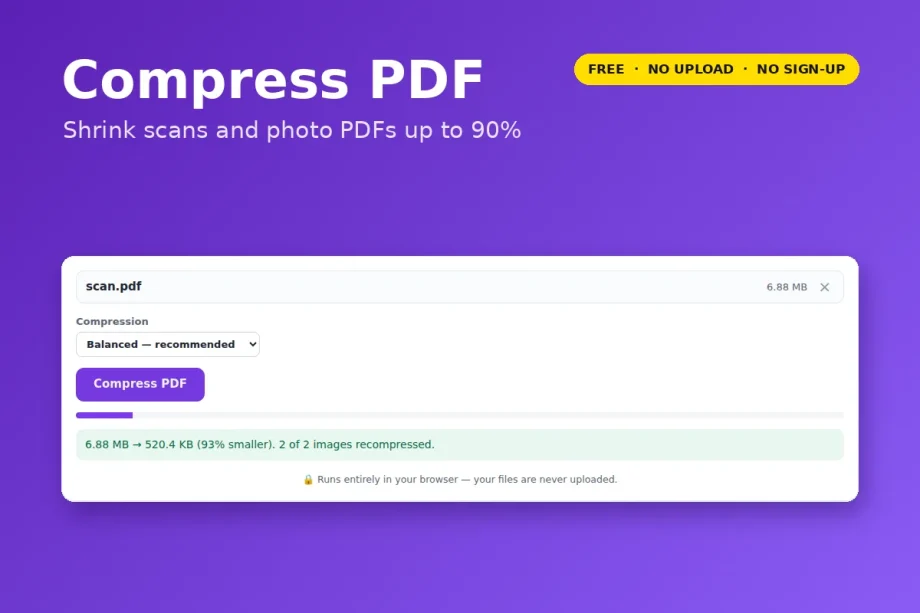
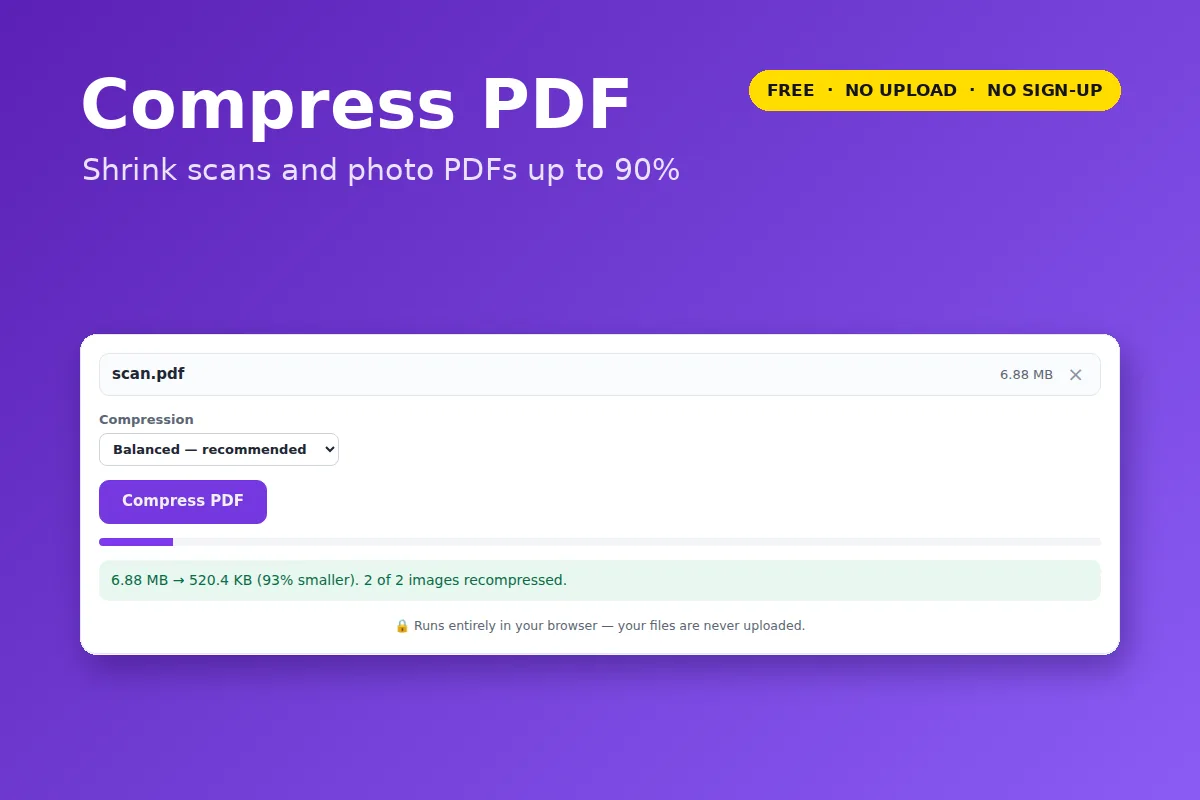
In our test, a 6.9 MB PDF of two photo pages came out at 520 KB — 93% smaller — and still looked clean on screen and on paper.
Which level?
- Light — barely visible change; for print.
- Balanced — the right choice for email and forms.
- Strong — smallest file that still keeps selectable text.
- Flatten — for scans only: every page becomes one compressed image. Smallest of all, but text can no longer be selected.
- A PDF that is mostly text or vector art is already small; if nothing can be saved, the tool says so instead of giving you a bigger file.
- Password-protected PDFs need the password removed first.
Your file is opened and processed by your own browser. Nothing is uploaded to VectorDad or anyone else, which also means there is no file-size queue, no watermark and no account.