Photo Engraving Studio
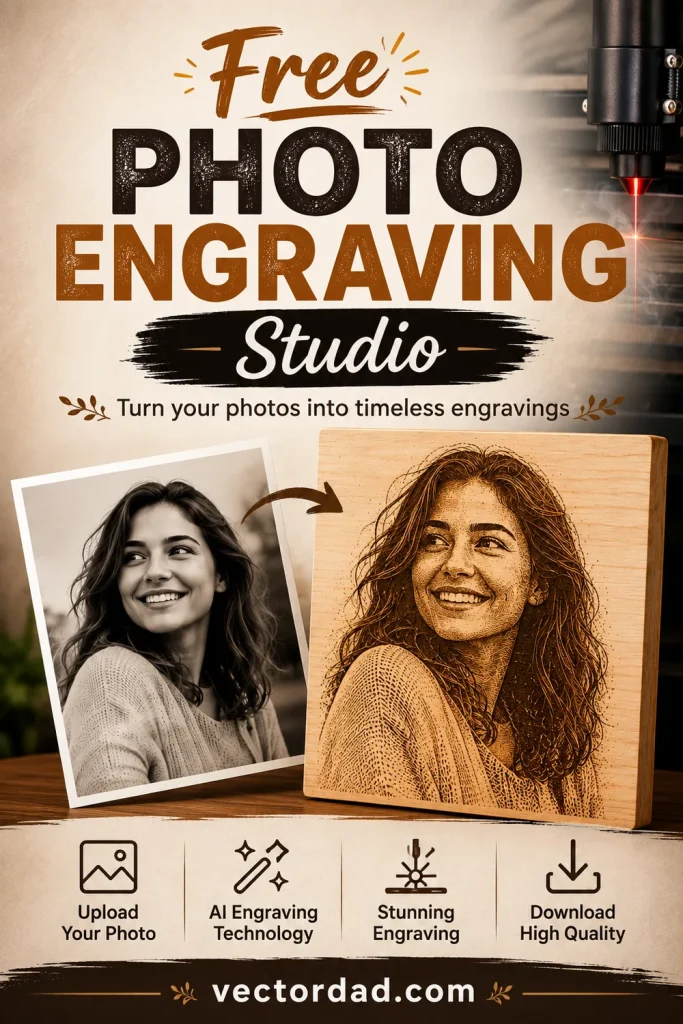
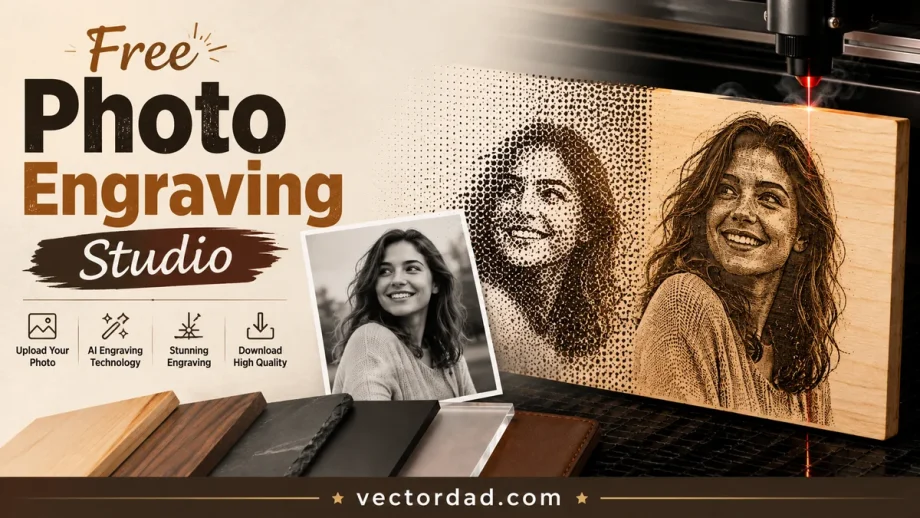
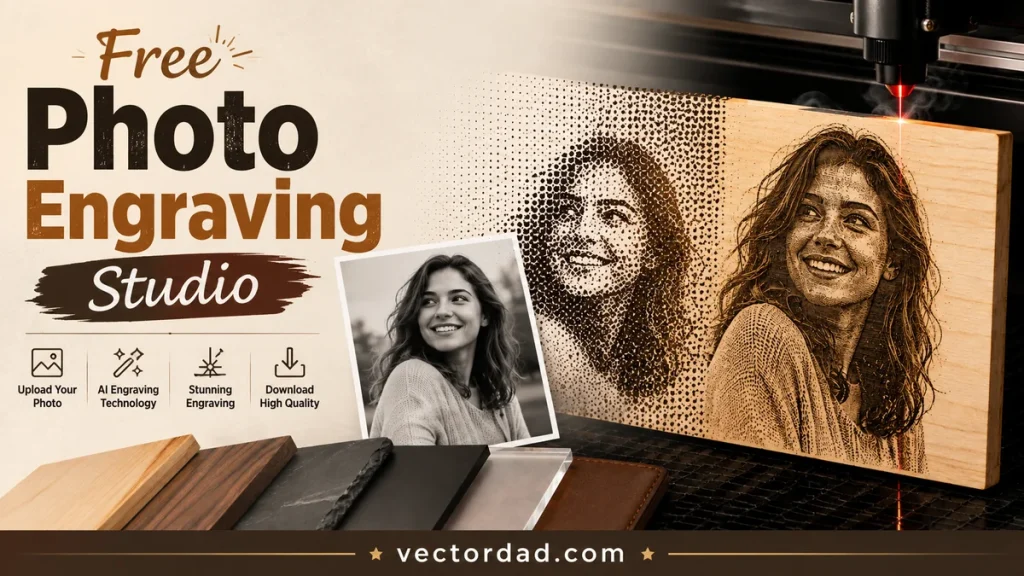
Upload a photo, pick your material, and see what the burn will actually look like on basswood, walnut, slate, black anodised aluminium, acrylic or leather — before you put a real workpiece in the machine. Then download a 1-bit PNG that lands in LightBurn, LaserGRBL or xTool Creative Space at exactly the millimetre size you asked for. Free, no signup, and your photo never leaves your browser.
Why engraved photos come out muddy
A laser does not paint grey. It either fires or it does not, so a photograph has to be turned into thousands of black dots and the illusion of grey comes from how densely they sit. The catch is that a burnt dot is wider than the pixel that asked for it — about 0.14 mm on basswood, 0.05 mm on anodised aluminium. Push the resolution past the point where those dots start overlapping and the shadows merge into a solid black blob. That is dot gain, and it is why “more DPI” so often makes an engraving worse.
The preview here models it directly: it spreads each dot to the real burn width for the material you picked, then works out how much of the surface is actually covered. If your settings are going to fill in, you will see it fill in on screen, and the tool will tell you by how much and offer a one-click fix.
The right resolution for each material
These are the numbers the tool aims for. They come from the burn spot size, not from a preference — a finer spot can carry more dots per inch, a coarse one cannot.
| Material | Burn spot | Best DPI | Tonal range |
|---|---|---|---|
| Basswood / birch ply | 0.14 mm | 254 | Wide — the easiest material to start on |
| Walnut / dark hardwood | 0.14 mm | 254 | About half of basswood — no file fixes this |
| Slate coaster or tile | 0.10 mm | 356 | Wide, but engraves light on dark |
| Black anodised aluminium | 0.05 mm | 711 | The widest of the six — finest detail |
| Black cast acrylic | 0.09 mm | 395 | Good, frosted white mark |
| Leather | 0.17 mm | 209 | Coarsest spot — keep the image simple |
Slate, anodised aluminium and acrylic mark lighter than the surface around them, so the image has to be inverted before it is engraved. The tool does that for you the moment you pick one of those materials — you do not need to prepare an inverted file.
Dithering, with a live comparison
The dither pattern decides how those black dots are arranged. Jarvis spreads error widest and gives the smoothest skin tones. Stucki is a little crisper and holds detail in dark material. Atkinson throws away some of the error, which lifts contrast and suits slate and anodised work. Floyd–Steinberg is the classic tight pattern. Switch between them and watch the same photo change on the same board — it is a far quicker way to choose than burning test tiles.
What you download
- 1-bit PNG with a real physical size baked in. The file carries a pHYs chunk, so LightBurn and friends place it at the exact width you set with no rescaling — the step where most people accidentally lose their resolution.
- SVG in true millimetres, if your workflow prefers vector placement.
- Halftone as real vector circles, in millimetres. Many controllers engrave a vector fill faster than a raster pass.
- Greyscale mode writes 8-bit instead, for lasers that vary power per pixel.
Questions
Does my photo get uploaded anywhere?
No. Everything — the dithering, the preview, the export — runs inside your own browser. Nothing is sent to a server, which matters when the photo is of your family.
Why does my walnut engraving look flat?
Because walnut is already dark, so a full-power burn is only about half a tone away from the bare surface. That is a property of the wood, not of your file. Push contrast harder, accept that deep shadows will merge, or move to basswood for portraits.
What size should I engrave at?
Set the real finished size in millimetres or inches in the tool, and it works the resolution out from there. Guessing a pixel size and scaling later is what causes soft, over-filled results.
Which laser does this work with?
Any of them. The output is a standard image file with a physical size, so diode, CO2 and fibre machines all take it — LightBurn, LaserGRBL, xTool Creative Space, Lightburn-compatible controllers and so on.
More photo tools: All photo tools · Line Art Generator · Stencil Maker · Silhouette Maker · Image Vectorizer