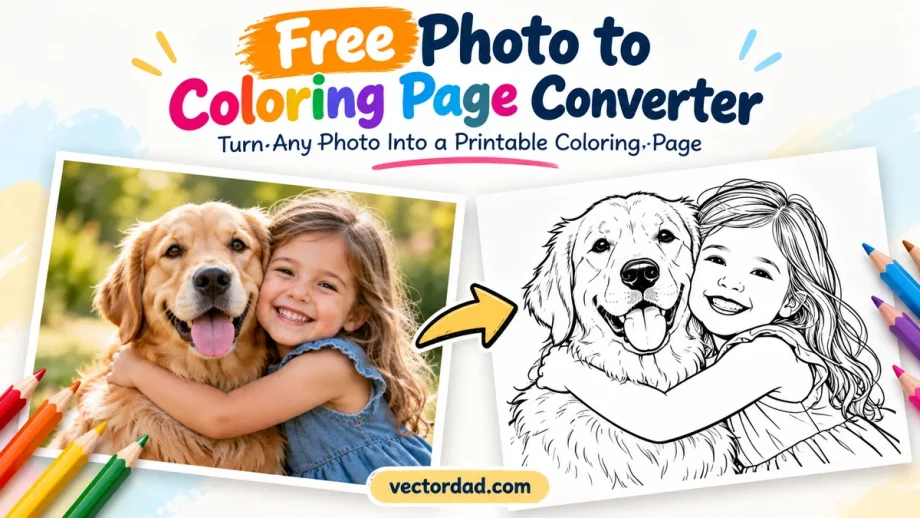
Photo to Coloring Page Converter — Free, Printable, No Signup
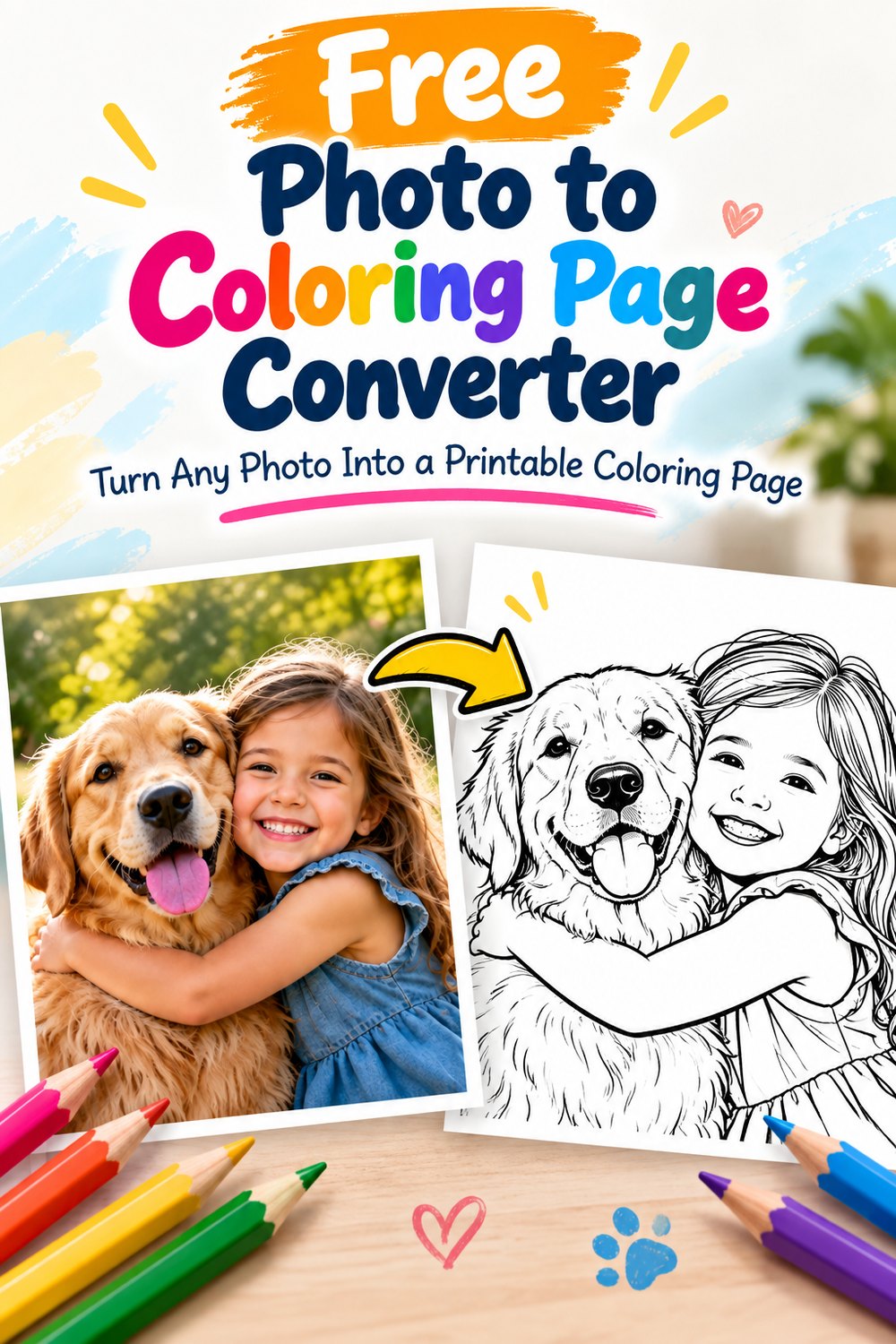
Turn any photo into a printable coloring page in seconds. Upload a picture of your kids, your pet, your house or a favourite place, and get clean black outlines on white — ready to print as a PDF or save as a PNG or SVG. Free, no signup, no watermark, and your photo never leaves your device.
Free · no signup · JPG, PNG or WEBP · opens with coloring-book settings
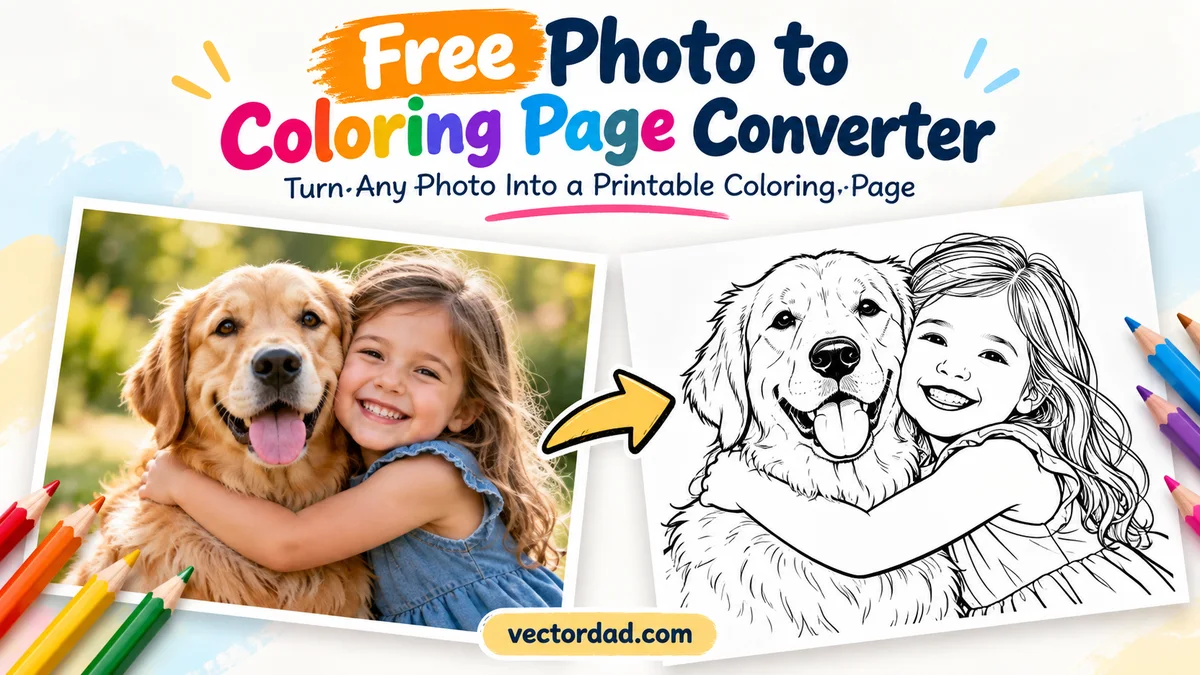
Coloring-book settings are already on. The tool opens with fewer details, thicker lines and extra clean-up, so you get big, open areas that are easy to color. Want more detail for older kids or adults? Slide Details up. Too many stray marks? Slide Clean up.
How to Turn a Photo into a Coloring Page
- Load the tool — click Load Photo to Coloring Page above.
- Add your photo — click Browse Image File or paste an image with Ctrl + V (Command + V on a Mac).
- Check the Vector Art tab — that is your coloring page. Adjust Details, Thickness and Clean until the lines look right.
- Download — choose PDF to print straight away, PNG for sharing, or SVG if you want to edit or cut it.
- Print and color — print on plain printer paper, or on thicker card stock if you are using markers or paint.
Which Photos Make the Best Coloring Pages?
- One clear subject — a single face, a pet, a car or a building works better than a busy group shot.
- Plain background — a wall, the sky or grass keeps the page clean. Busy backgrounds turn into lots of small shapes.
- Good, even light — daylight photos without harsh shadows give the clearest outlines.
- Close-up beats far away — crop in on the subject before you upload for bigger areas to color.
- Cartoons and drawings work too — a child’s drawing or a simple illustration converts into a crisp line version.
What the Settings Do
| Setting | What it changes | For coloring pages |
|---|---|---|
| Details | How many lines are kept | Lower (60–75) for young kids, higher (85–100) for adults |
| Thickness | How bold the lines are | 25–32 gives crayon-friendly lines; keep it under 40 or the image can go blank |
| Clean | Removes tiny specks and short strokes | 25–40 for clean, open areas |
| Brightness | Lightens or darkens the photo before tracing | Raise it for dark photos, lower it for washed-out ones |
Ideas: What to Make with Your Own Coloring Pages
- Personalised coloring books — turn family photos into a stapled book for a birthday, holiday trip or grandparents’ gift.
- Pet portraits — kids love coloring their own dog or cat.
- Party activities — a coloring page of the birthday child for every guest.
- Classroom pages — photos of a field trip, the school building or class pets.
- Memory keepsakes — your house, a wedding photo or a favourite holiday spot.
Looking for ready-made designs instead? Browse our free printable coloring pages, including animal coloring pages and mandala coloring pages.
Coloring Page, Outline or Sketch — Which Tool?
This page uses the same engine as our Photo to Outline converter, set up for coloring. If you want fine line art for tracing, a Cricut or a laser, use the outline tool. For shaded, pencil-style drawings with interior lines, try Photo to Sketch. For a cuttable stencil with bridges, use the stencil maker.
Frequently Asked Questions
Is the photo to coloring page converter free?
Yes. It is completely free, with no signup, no watermark and no limit on how many pages you make.
Is my photo uploaded anywhere?
No. The conversion runs entirely in your browser. Your photo is never sent to a server and nothing is stored.
How do I print the coloring page?
Download the PDF and print it at 100% scale on letter or A4 paper. For markers or paint, use card stock so the colors don’t bleed through.
Why is my coloring page too busy?
Lower Details and raise Clean. A photo with a plain background and one clear subject will always give a cleaner page.
My page came out blank or very faint. What happened?
Thickness is probably too high, or the photo is very dark. Bring Thickness back to around 30 and raise Brightness.
Can I sell coloring books made with this tool?
Yes, as long as you own the rights to the photos you convert. The tool adds no watermark and claims no rights over your output.