- Converters
- ▸ SVG TO DXF
- ▸ SVG TO JPG
- ▸ SVG TO PNG
- ▸ SVG TO EPS
- ▸ SVG TO PDF
- ▸ SVG TO WEBP
- ▸ SVG TO TTF
- ▸ EPS TO DXF
- ▸ EPS TO SVG
- ▸ PDF TO SVG
- ▸ PDF TO PNG
- ▸ PDF TO JPG
- ▸ EDIT PDF New
- ▸ JPG TO PDF
- ▸ MERGE PDF
- ▸ SPLIT PDF
- ▸ COMPRESS PDF
- ▸ PDF TO WORD
- ▸ PDF TO EXCEL
- ▸ WORD TO PDF
- ▸ EXCEL TO PDF
- ▸ AI TO SVG
- ▸ AI TO EPS
- ▸ AI TO DXF
- ▸ WEBP TO PNG
- ▸ WEBP TO JPG
- ▸ PNG TO WEBP
- ▸ JPG TO WEBP
- ▸ HEIC TO PNG
- ▸ HEIC TO JPG
Free PDF Editor: Edit the Text in Your PDF
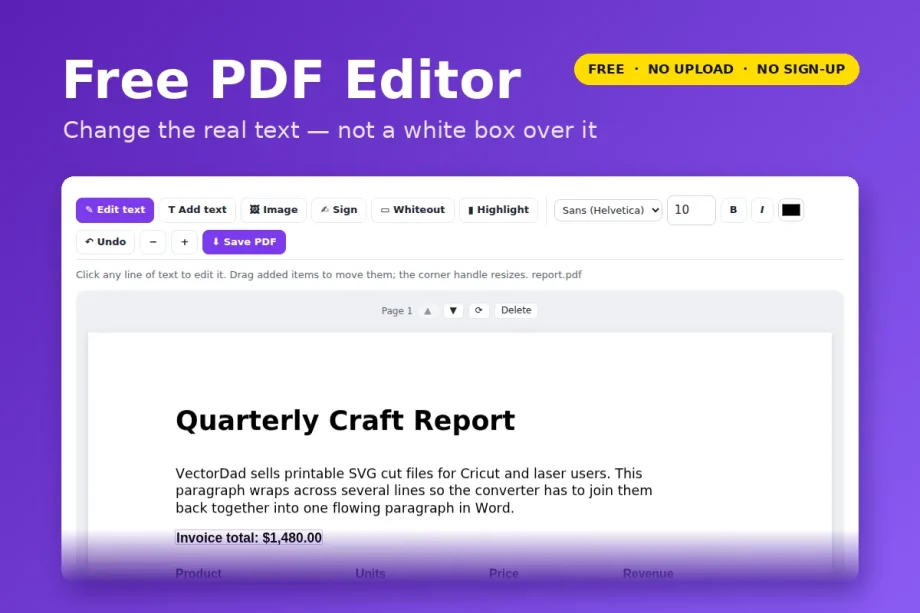
Click any line in your PDF, type the new words, save. The old text is taken out of the file — not hidden under a white box — so nobody can copy it back out.
Free · no signup · any PDF · your file never leaves your device
How to edit a PDF
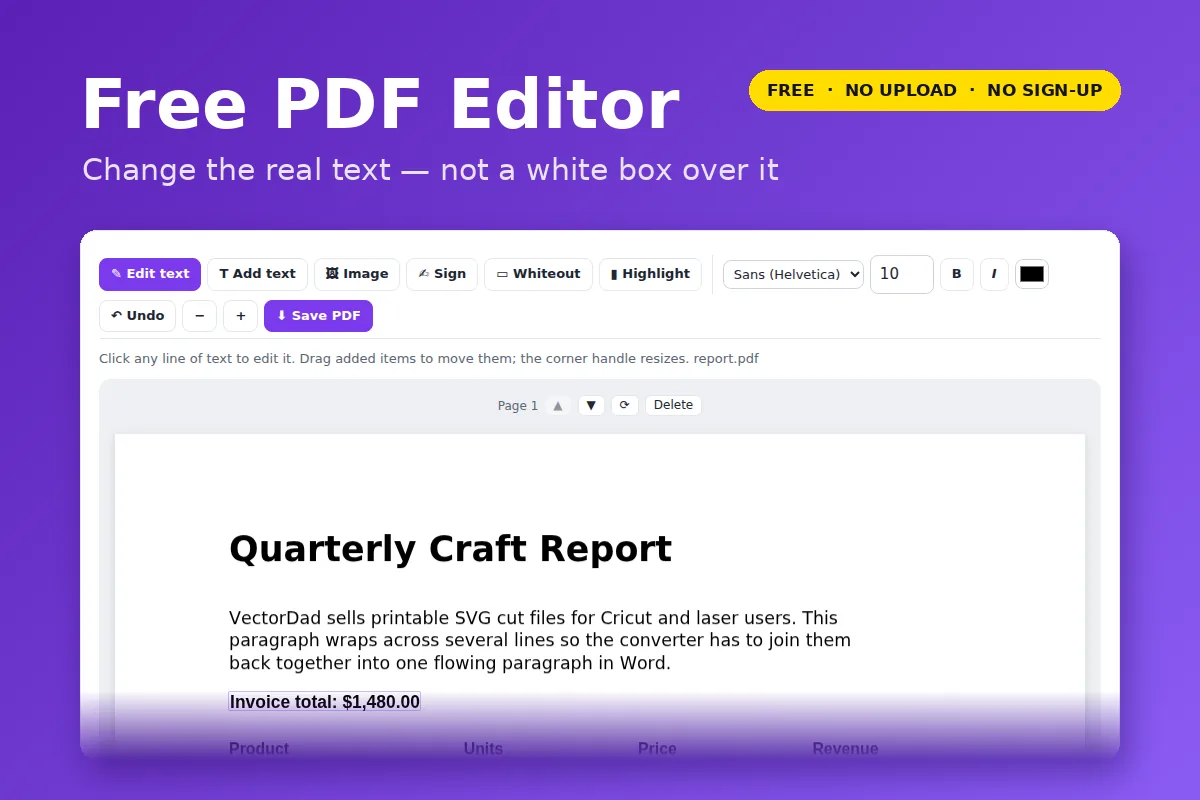
- Click Open the PDF editor and choose your PDF.
- Click any line of text. It turns into a text box — change it and click away.
- Use the toolbar to add new text, an image, a drawn signature, a whiteout box or a highlight.
- Use the arrows above each page to reorder, rotate or delete pages.
- Click Save PDF.
Real text editing, not a white box
Most free “edit PDF” tools paint a white rectangle over the old words and type on top. It looks fine, but the original text is still in the file: search finds it, copy-paste reveals it, and anyone with an editor can delete the box. That is how redacted prices and names leak.
This editor rewrites the page itself. Every letter of the line you changed is removed from the PDF, and the rest of the page stays exactly where it was. Try it: edit a line, save, then open the new file and search for the old words — they are gone.
What else you can do
- Add text anywhere, in sans, serif or mono, any size and colour.
- Sign by drawing with your mouse or finger; the signature is cropped and placed as an image.
- Insert images — logos, stamps, photos (JPG, PNG, WebP).
- Whiteout and highlight areas.
- Rotate, reorder and delete pages, with undo for every step.
Good to know
- Edited text is set in a matching standard font (Helvetica, Times or Courier), picked from the original style — you can change it, and bold/italic, in the toolbar.
- Latin-alphabet text only for new words; other scripts show as “?” and the editor tells you how many.
- Text that sits inside an embedded graphic can only be covered, not removed. The save message tells you when that happened.
- Sideways (rotated) text is not editable.
- Reordering or deleting pages drops bookmarks and form fields.
- Password-protected PDFs need the password removed first.
Your file is opened and processed by your own browser. Nothing is uploaded to VectorDad or anyone else, which also means there is no file-size queue, no watermark and no account.
Questions
Is this PDF editor really free?
Yes. No sign-up, no watermark, no page limit. It runs in your browser, so it costs us nothing to run per file.
Can I edit a scanned PDF?
A scan is a photo of a page, so there is no text to edit. You can still add text, whiteout, signatures and images on top of it.
Does it work on a phone?
Yes. Pages fit your screen width; use the + button to zoom in before tapping a line.
Will the file look different after saving?
Only the lines you changed. Everything else — images, drawings, other text — is copied through untouched.