Free Online Photo to Line Art Converter
Turn any photo into clean line art or a hand-drawn pencil sketch in seconds. Upload a favorite image, adjust the line thickness, and download crisp line drawings as PNG or SVG – 100% free, no sign-up, and the conversion runs right inside your browser.
A clean, fast in-browser tool. Your image never leaves your device – the whole conversion happens locally. The tool loads only when you click, so this page stays light.
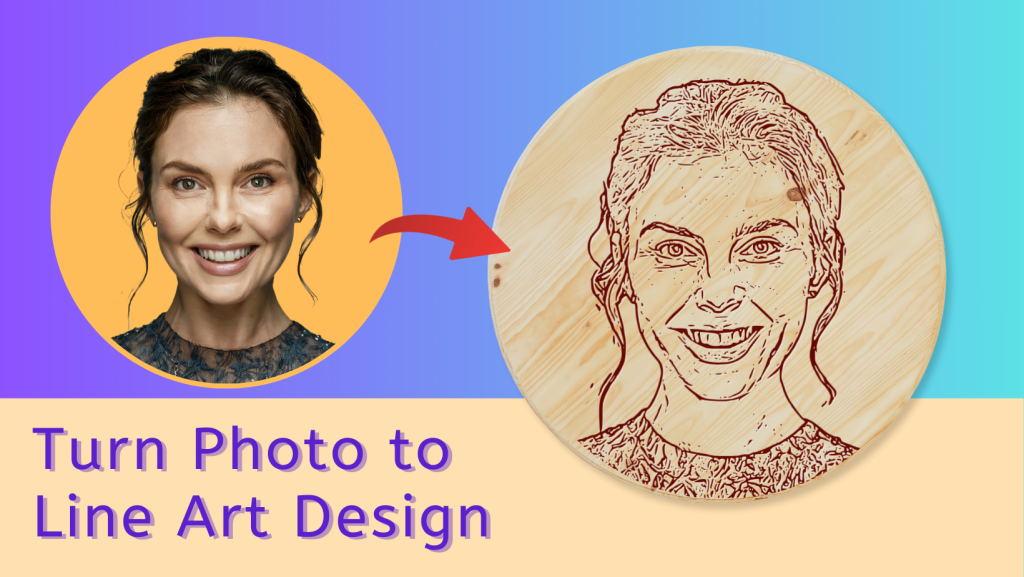
Turn Any Photo Into Clean Line Art – Instantly & Free
Whether you want to trace a portrait, build a coloring page, prep a design for cutting machines, or just create cool sketch-style art, our Photo to Line Art Converter does the heavy lifting. It detects edges, smooths the strokes, and gives you adjustable controls for line thickness, sharpness and shadow so the result looks hand-drawn rather than machine-traced.
Why Use Our Line Art Converter?
- Runs in your browser – nothing is uploaded to a server, so it is fast and private.
- Adjustable strokes – fine-tune thickness, sharpening and shadow for the exact look you want.
- Download PNG or SVG – get clean raster art or scalable vectors for cutting and printing.
- Totally free – no watermark, no account, no limits.
Who Is It For?
Artists and illustrators who want a sketch base to trace; crafters preparing SVGs for Cricut or Silhouette; teachers making coloring sheets; small businesses creating logo-style line drawings; and anyone who just wants to turn a photo into a fun line-art portrait.
How It Works
Click Start Converting to launch the tool, drop in any JPG, PNG or HEIC image, and the converter traces the edges into clean line art. Slide the thickness and sharpen controls until it looks right, then download. That is it – three steps from photo to line drawing.
Tips for the Best Results
Use a photo with good contrast and a clear subject. Portraits, pets, buildings and product shots work especially well. Increase sharpening for more detail, or lower the thickness for a delicate, sketch-like feel. Busy backgrounds can add noise – a clean or blurred background gives the cleanest lines.
Line Art vs. Outline – Which Do You Need?
Line art keeps interior detail and shading lines for a sketched, illustrated look, while an outline reduces the image to its main contour. If you want just the outer shape, try our Photo to Outline / Line Art Generator. For detailed, sketch-style drawings with internal lines, this Photo to Line Art tool is the better fit. Many users keep both bookmarked and switch depending on the project.
How to Use the Photo to Line Art Tool (Step by Step)
- Launch the tool – click the Start Converting button above. The app loads only after you click.
- Add your photo – drag and drop, browse, or paste an image from your clipboard.
- Adjust the look – use the thickness, sharpen and shadow sliders to refine the line art.
- Download – save your line drawing as a PNG, or export an SVG for scaling and cutting.
Frequently Asked Questions
Is the photo to line art converter free?
Yes. It is completely free with no sign-up, no watermark and no usage limits.
Are my photos uploaded anywhere?
No. The conversion runs locally in your browser, so your images stay on your device.
What file formats can I upload and download?
You can upload JPG, PNG and HEIC images, and download your result as PNG or SVG.
Can I use the line art for Cricut or Silhouette?
Yes – export as SVG and import it into your cutting software for clean, scalable paths.
Why does the tool only load after I click?
To keep the page fast and light, the converter is loaded on demand. Nothing heavy runs until you click Start Converting.